Microsoft Teams has native AI note-taking, but there is no single feature called the Teams AI notetaker. Microsoft splits the job across Facilitator, Intelligent Recap, and Copilot.
Third-party tools work differently. Some join as a visible participant. Some capture Teams audio from your desktop. Others only work when you join through a browser.
That architecture matters more than another summary-quality score. It determines whether the tool works in external meetings, where the transcript lives, and whether your administrator can block it.
For most people, the shortlist is:
- Microsoft Facilitator and Intelligent Recap for organizations already governed through Microsoft 365.
- Anarlog for an open-source, bot-free workflow with a local SQLite meeting record.
- Granola for a polished bot-free notepad with a hosted team workspace.
- Tactiq for live transcription in Teams on the web.
- Otter for auto-join and unattended capture.
- Fireflies for CRM routing and workflow automation.
Microsoft Teams AI notetakers compared
| Workflow | Teams capture path | Visible meeting bot? | Canonical record | Best fit |
|---|---|---|---|---|
| Microsoft Facilitator, Intelligent Recap, and Copilot | Native Teams audio, recording, and transcription | No external bot | Microsoft 365 | Microsoft-governed organizations |
| Anarlog | Desktop system audio and microphone | No | Local SQLite | Local-first ownership and AI-provider choice |
| Granola | Desktop audio with calendar detection | No | Granola workspace | Collaborative, bot-free AI notes |
| Tactiq | Chrome, Edge, or Teams PWA extension | No | Tactiq workspace | Teams web users who want a live transcript |
| Otter | Auto-join participant, desktop capture, Chrome, or mobile | Optional | Otter workspace | Unattended capture and searchable meeting memory |
| Fireflies | Auto-join participant or desktop system audio | Optional | Fireflies workspace and connected tools | Integration-heavy team workflows |
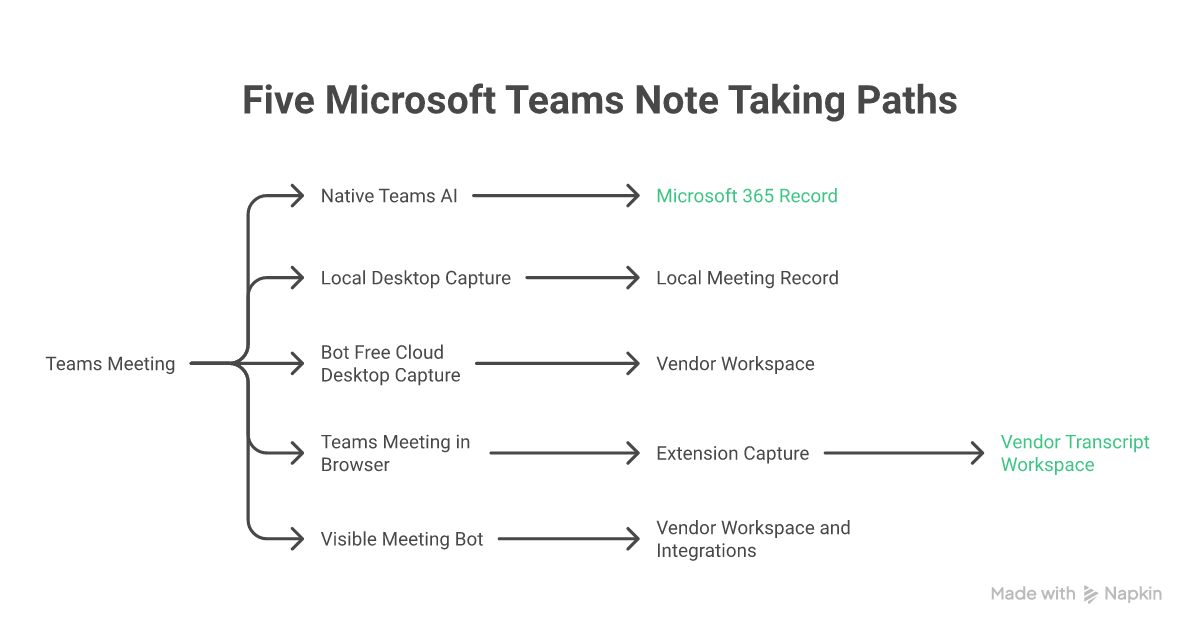
A native Teams feature inherits Microsoft 365 policies. A local desktop recorder can keep the canonical record on your machine. A bot-free cloud app removes the participant but still stores notes in a vendor workspace. A browser extension depends on how you join. A meeting bot can attend without you, but it must pass the lobby.
Does Microsoft Teams have an AI notetaker?
Yes, but the answer depends on what you mean by notes.
Facilitator generates collaborative notes during a scheduled Teams meeting. It can summarize decisions and open questions, track an agenda, and sync accepted tasks to Planner. A Microsoft Copilot license is required to turn it on. Other internal participants can see its live updates in Chat and Notes without holding their own Copilot license. Microsoft documents Facilitator and its current limits here.
Intelligent Recap produces post-meeting notes, suggested tasks, timeline markers, topics, and chapters from a recorded or transcribed meeting. Microsoft currently makes it available through Teams Premium or a Microsoft Copilot license, though individual recap features have different prerequisites. The current recap guide lists those requirements.
Copilot answers questions and generates notes during a meeting. Teams also has an "Only during the meeting" mode that works without creating a persistent recording or transcript. The tradeoff is that Copilot will not remain available in Recap afterward unless someone enables recording or transcription. Purview may still retain prompts and responses under the organization's policy. Microsoft explains the distinction here.
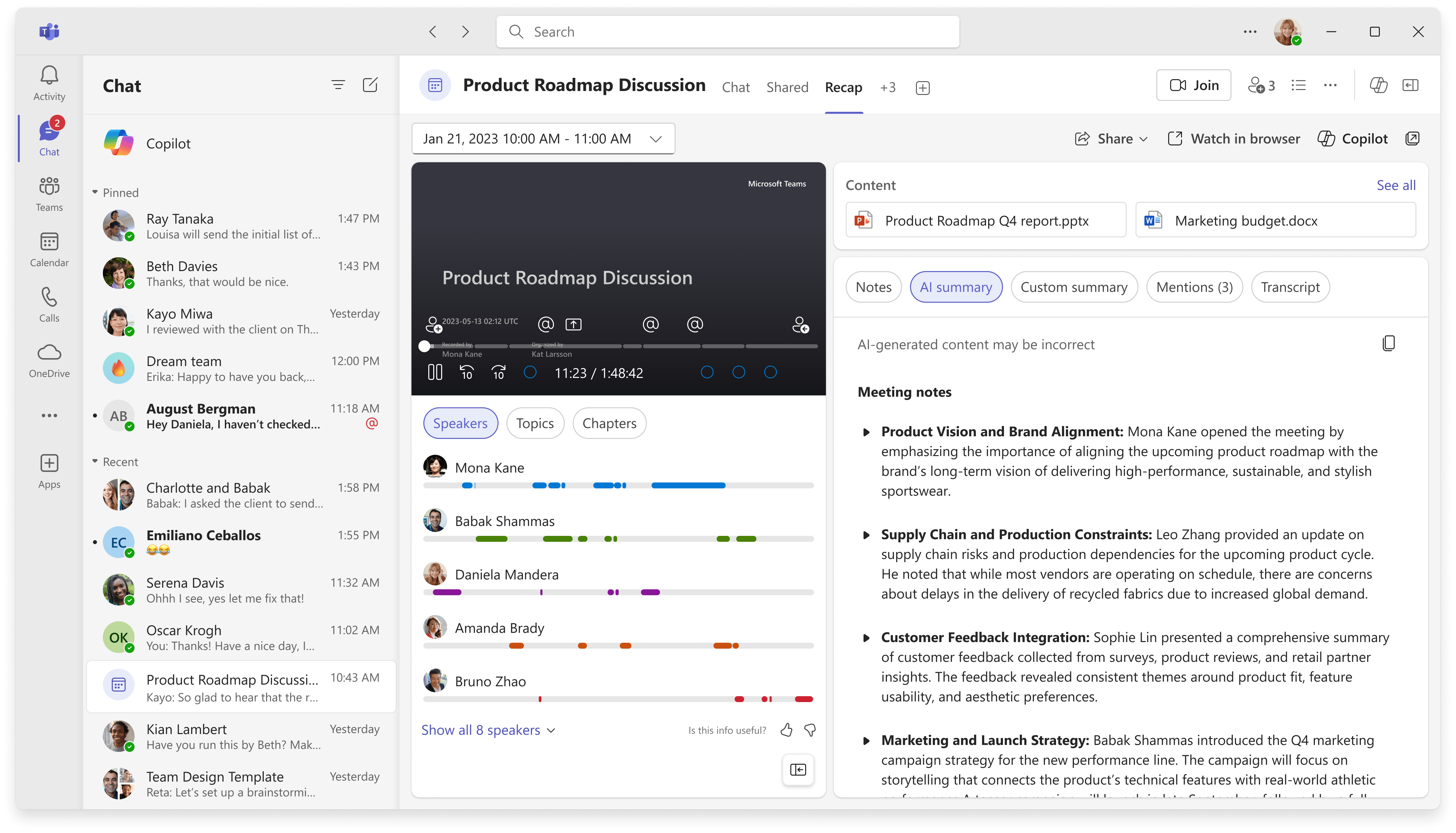
Microsoft's Recap example keeps the recording, transcript, AI summary, and timeline in one Teams surface. View the current Microsoft guide.
The native option is the logical baseline. Do not pay for another workspace until you know which constraint Teams fails to meet.
1. Microsoft Facilitator, Intelligent Recap, and Copilot
Best for: Organizations that want meeting notes governed through Microsoft 365.
Microsoft's advantage is administrative continuity. The meeting, transcript, recap, permissions, and retention controls remain inside the tenant your IT team already manages.
The storage model is more distributed than the Teams UI suggests. Recordings live in the organizer's OneDrive, or the channel SharePoint site for channel meetings. Transcript copies and AI-generated recap artifacts can live in OneDrive, Exchange, or participant mailboxes depending on the feature. Facilitator notes are stored in an editable Microsoft Loop page. Microsoft's Intelligent Recap privacy documentation maps the current storage paths.
Strengths
- No third-party participant or calendar bot
- Shared real-time Facilitator notes inside Teams
- Recap, transcript, recording, tasks, and meeting content in Microsoft 365
- Existing sensitivity, retention, access, and eDiscovery controls
- Useful across desktop, web, and mobile, with feature-specific limits
Tradeoffs
- Facilitator requires a Copilot license
- Intelligent Recap requires Teams Premium or Copilot, with exceptions by feature
- Post-meeting AI access normally depends on recording or transcription
- External participants do not get the same access as internal attendees
- Notes remain tied to the Microsoft tenant and its retention policy
Microsoft changed parts of its Teams license packaging on April 1, 2026, and grandfathered some existing Teams Premium entitlements until renewal. Check the current Teams enhanced-experience licensing table rather than copying a plan matrix from an older comparison.
Choose Microsoft when your company already treats Teams as the meeting system of record.
2. Anarlog
Best for: People who want bot-free Teams notes with a local meeting record and no AI-provider lock-in.
Anarlog is our open-source, local-first AI meeting notetaker. It captures microphone and system audio from your computer, so nothing joins the Teams call. The canonical session, notes, transcript, and meeting metadata stay in local SQLite. Recordings and attachments remain local files, and Markdown is available as an export.
You can use managed AI, bring your own provider key, or run local models through Ollama or LM Studio. The model choice is separate from the meeting record. Switching providers does not require moving your history to another workspace.
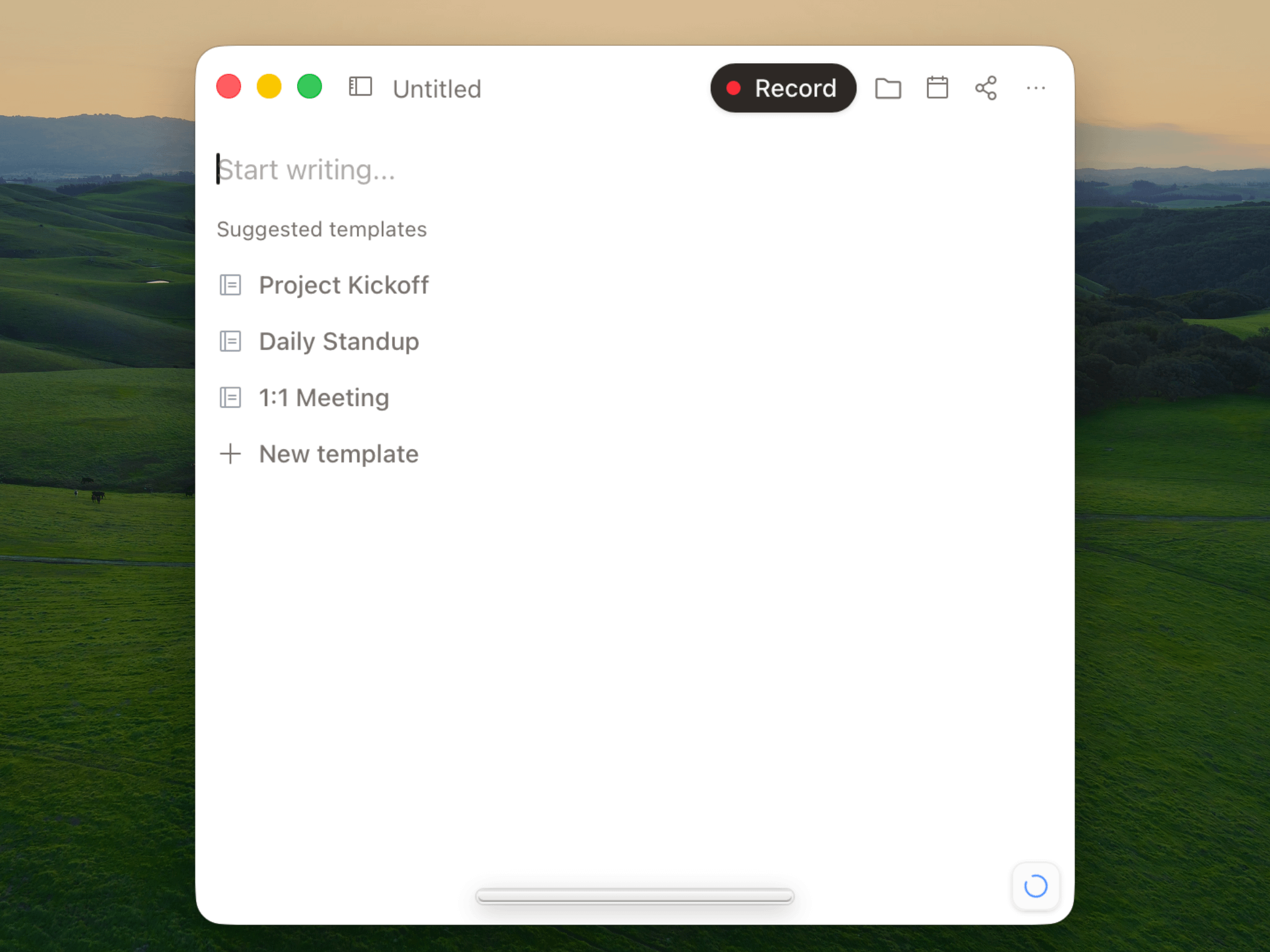
Anarlog keeps recording and template choices in one desktop view, without adding a participant to Teams.
Strengths
- No meeting bot or Teams calendar permission
- Local SQLite as the canonical meeting record
- Local transcription and local-model options
- Bring-your-own-key support
- MIT-licensed community application
- Works across Teams, Zoom, Meet, phone calls, and in-person conversations
Tradeoffs
- It does not attend meetings for you
- It is a personal desktop workflow, not a Teams administrator feature
- Windows and Linux builds are newer beta releases than the macOS app
- Collaboration requires an intentional export, sync, or sharing workflow
- Cloud AI and sync features have separate data paths when enabled
Anarlog is the strongest fit when ownership means controlling the record itself, not only choosing whether a bot appears in the participant list.
3. Granola
Best for: Teams users who want a polished, collaborative AI notepad without a meeting bot.
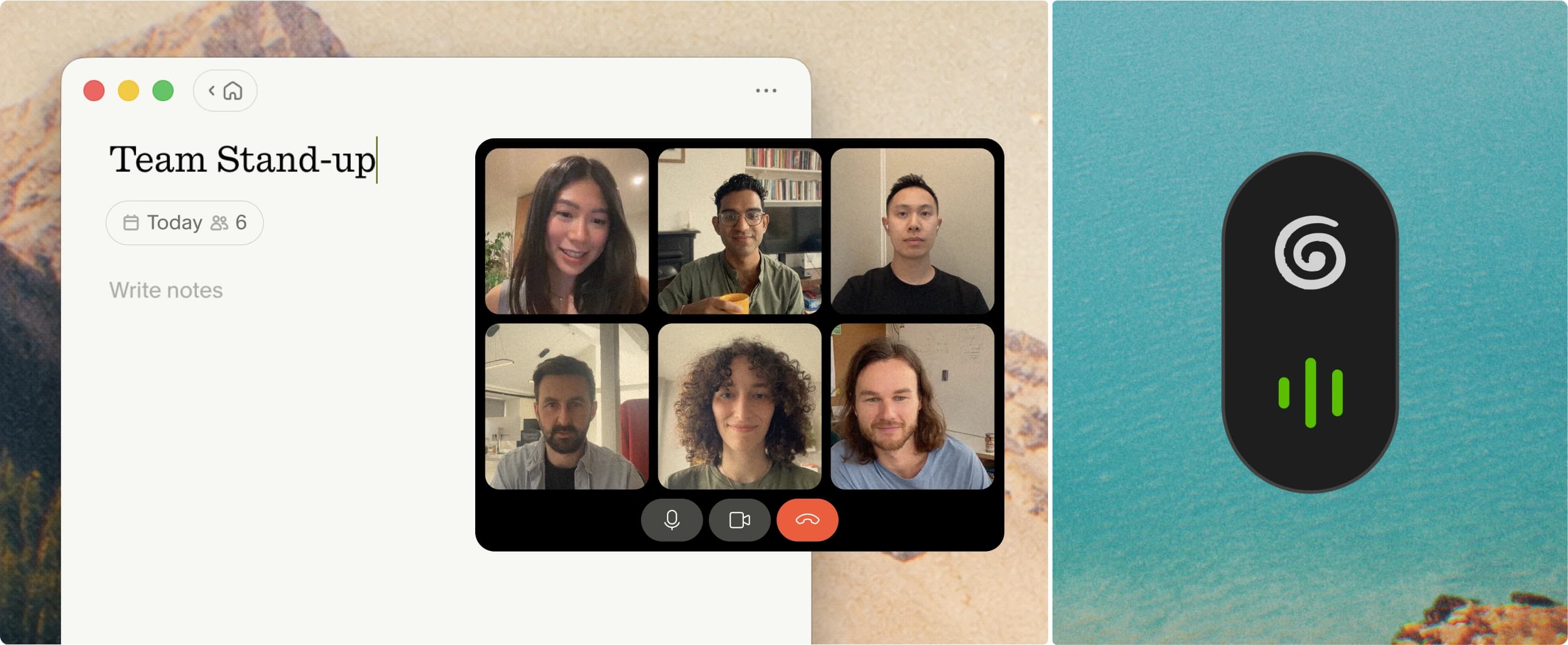
Granola's first-party product image shows its notepad working beside a call without another participant joining. Source: Granola.
Granola runs on your computer and uses device audio instead of joining the meeting. Its Teams-specific setup currently requires the Teams desktop app, with Granola and Teams using the same default audio devices. Granola documents that setup here.
Granola is an important comparison because "bot-free" no longer means "local". It removes the guest participant, but the notes and team memory live in Granola's hosted workspace. Granola says it sends audio to a transcription provider during the meeting and does not retain that audio after transcription.
Strengths
- No meeting participant
- Collaborative notes and searchable team memory
- Available on macOS and Windows, with mobile apps
- Private-by-default notes and enterprise administration on higher plans
- Free plan for ongoing individual use, with a 30-day history limit
Tradeoffs
- Teams capture depends on the desktop app and audio-device setup
- Meeting history lives in a vendor workspace
- No local database or bring-your-own AI stack
- Enterprise retention and identity controls require the highest plan
- It cannot attend a meeting when you are absent
Choose Granola when you want bot-free capture and shared cloud memory, but do not need local ownership or model choice.
4. Tactiq
Best for: People who join Teams through a browser and want a live transcript without a guest participant.
Tactiq uses a Chrome or Edge extension to display a live transcript beside the meeting. It supports Teams in the browser and the Teams Progressive Web App. The native Teams desktop application is not supported. Tactiq's setup guide states the current client requirements.
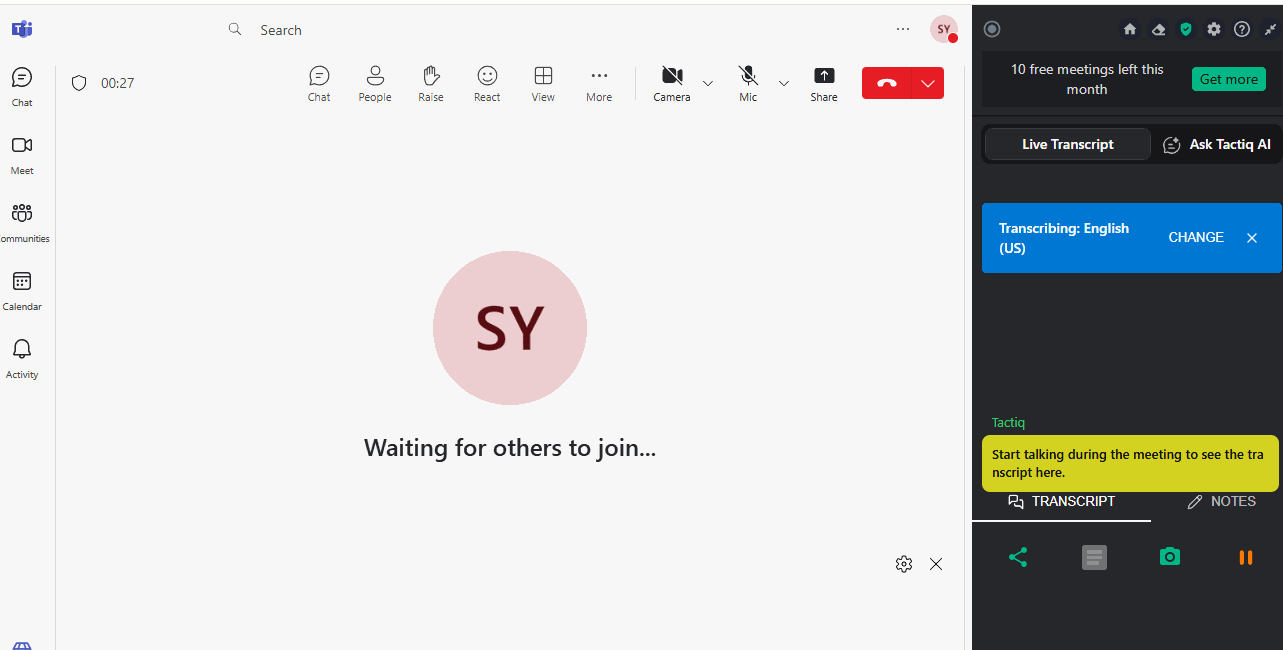
Tactiq's extension places the live transcript beside Teams on the web. View the current setup guide.
Strengths
- No guest notetaker or lobby dependency
- Live transcript during the meeting
- Low-cost entry point and a limited free plan
- Chrome, Edge, and Teams PWA support
- Transcript remains available in the Tactiq dashboard
Tradeoffs
- No support for the native Teams desktop app
- Browser and extension changes can affect capture
- Some light-meeting sessions require Teams captions to be enabled
- Notes live in a separate cloud service
- It cannot join or capture a meeting without you
Choose Tactiq when Teams web is already your normal client.
5. Otter
Best for: Teams that want automatic joining, unattended capture, and a searchable meeting workspace.
Otter can connect to a Microsoft calendar and send its Notetaker into scheduled Teams meetings. The guest participant may need admission under the host's lobby policy. It can keep working when you do not attend, which local recorders and browser extensions cannot do.
Otter is no longer bot-only. Its current desktop apps can capture meeting audio without adding a participant, and it also offers Chrome and mobile capture. That gives an individual a bot-free option while preserving Otter's hosted workspace and AI-agent features.
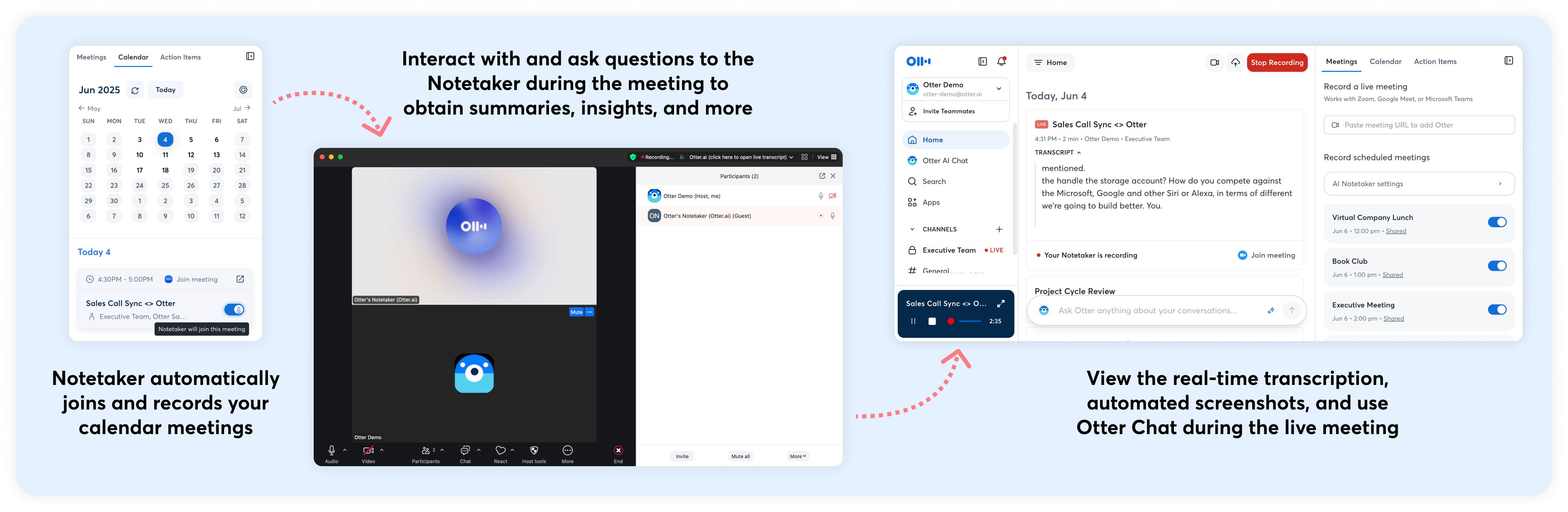
Otter's Notetaker can appear as a visible guest while the user follows the live transcript in Otter. View Otter's Notetaker overview.
Strengths
- Calendar-based auto-join
- Can capture a meeting when you are absent
- Bot-free desktop, Chrome, and mobile alternatives
- Search and AI chat across previous conversations
- Cross-platform support for Teams, Zoom, and Google Meet
Tradeoffs
- Auto-join mode adds a visible participant and depends on lobby admission
- Meeting history lives in Otter's workspace
- Automation settings need careful calendar scoping
- Bot-free capture still uses Otter's cloud service
- Organizations need their own consent and retention policy
Choose Otter when attendance automation matters more than keeping the meeting record local.
6. Fireflies
Best for: Teams that want notes pushed into CRM, collaboration, and workflow systems.
Fireflies can send its Notetaker into a Teams meeting as a participant through calendar sync or a manual invite. Its desktop app also offers system-audio capture without a bot. The bot-free mode creates a transcript and summary but currently omits separate audio and video files and named speaker labels. Fireflies documents those limits here.
The differentiator is what happens after the recap. Fireflies routes notes into a broad integration catalog and can post meeting output into a selected Teams channel. Its Teams integration guide explains that delivery path.
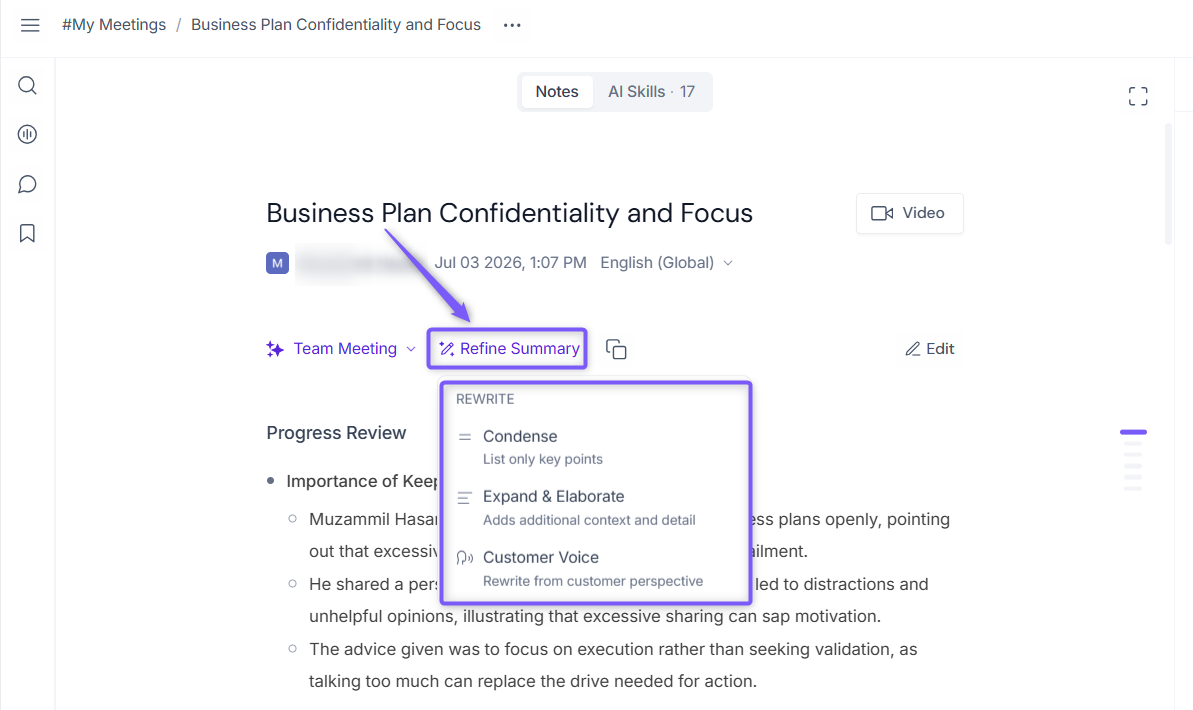
Fireflies can condense, expand, or rewrite a meeting summary before routing it to other systems. View the current summary guide.
Strengths
- Choice of participant-based or desktop system-audio capture
- Broad CRM and workflow integration catalog
- Centralized transcripts and searchable meeting history
- Automatic delivery into selected Teams channels
- Useful for sales, recruiting, and other repeatable handoff workflows
Tradeoffs
- Bot mode is visible and depends on lobby policy
- Bot-free mode loses named speakers and separate media files
- Meeting history lives in another vendor workspace
- Broad integrations create more sharing and retention paths to govern
- Auto-join and distribution settings need deliberate administration
Choose Fireflies when a transcript is only the first step in an automated workflow.
Other Teams notetakers worth checking
The six options above cover the main architectures, but they are not the only products that work with Teams.
- Read AI combines an auto-join assistant with a native Teams app and meeting-engagement analytics. It fits organizations that want meeting, email, and message intelligence in one hosted system.
- tl;dv uses a meeting bot for Teams and leans toward sales coaching, playbook analysis, and CRM automation.
- Fathom has a generous cloud recording workflow and both participant-based and newer bot-free capture options, though confirm the Teams-specific behavior for your desktop client.
- Jamie is another bot-free desktop notetaker for Mac and Windows, with EU hosting and a cloud workspace.
These products can be good fits. The useful question is still where capture happens and who controls the resulting record.
Why Teams meeting bots may start failing more often
A calendar integration does not guarantee admission.
Microsoft is rolling out an admin policy that detects potential external bots, places them in the lobby, flags them for the organizer, and requires explicit approval even when other attendees can bypass the lobby. Its separate Bot Identification Program is still in public preview, so do not assume every notetaker is labeled consistently yet. Microsoft documents the rollout and identification limits here.
That changes the tradeoff for external calls. A bot may work in meetings your company hosts but stall in the lobby when a customer or partner owns the tenant. Test both cases before standardizing on auto-join.
How to choose a Teams AI notetaker
Start with the constraint that would disqualify a tool.
Choose Microsoft for tenant governance
Use Facilitator, Intelligent Recap, or Copilot when Teams and Microsoft 365 already hold the meeting record and your administrators want one policy surface.
Choose Anarlog for local ownership
Use Anarlog when you want bot-free capture, a local SQLite meeting record, open-source code, and control over which AI provider processes a summary.
Choose Granola for collaborative bot-free notes
Use Granola when you want a polished desktop notepad and shared hosted memory without a participant joining the meeting.
Choose Tactiq for Teams on the web
Use Tactiq when you consistently join through Chrome, Edge, or the Teams PWA and want live transcription beside the call.
Choose Otter for unattended capture
Use Otter when the notetaker must join from your calendar and keep recording even if you cannot attend.
Choose Fireflies for downstream automation
Use Fireflies when the main requirement is moving meeting output into CRM and team systems.
A practical deployment checklist
Before standardizing any Teams notetaker, test the complete meeting lifecycle:
- Decide which meetings may be recorded or transcribed.
- Test internal meetings and meetings hosted by another tenant.
- Confirm whether the workflow adds a participant, uses a browser, or captures desktop audio.
- Record where audio, transcripts, notes, prompts, and tasks are stored.
- Check what remains available after the meeting ends.
- Test deletion, export, retention, and access controls.
- Decide where approved decisions and tasks move after the recap.
Teams notifies participants when its native recording or transcription starts. Administrators can also require explicit recording consent before attendees can unmute or share video. Third-party desktop capture has a different notification path, so an organization still needs a clear recording policy. Microsoft documents the explicit-consent control here.
Recording and consent requirements vary by jurisdiction and meeting context. Review the practical issues in our guide to AI meeting-note legality and consent, then confirm the policy with qualified counsel.
Frequently asked questions
Does Microsoft Teams have a built-in AI notetaker?
Yes. Facilitator creates collaborative live notes, Intelligent Recap generates post-meeting summaries and tasks, and Copilot answers questions during and after supported meetings. Licensing and transcription requirements differ across the three.
Can Copilot take notes without recording a Teams meeting?
Yes, in "Only during the meeting" mode. Copilot can generate notes and tasks without a persistent recording or transcript. It will not remain available in Recap afterward unless recording or transcription is enabled, and Purview may still retain prompts and responses.
Can I take AI meeting notes in Teams without a bot?
Yes. Microsoft native features do not add an external bot. Anarlog and Granola capture desktop audio, Tactiq operates in Teams on the web, and Otter and Fireflies offer bot-free desktop modes alongside their meeting participants.
Which options work with the Teams desktop app?
Microsoft's native features, Anarlog, Granola, and desktop capture modes from Otter or Fireflies work with Teams desktop. Tactiq requires Teams in Chrome, Edge, or the Teams PWA.
Is a bot-free notetaker automatically private?
No. "Bot-free" only describes capture. Granola, Tactiq, Otter, and Fireflies can avoid a meeting participant while still storing notes in a vendor cloud. Check processing, storage, retention, AI-provider, and sharing paths separately.
Where does Teams store recordings and transcripts?
Standard meeting recordings go to the organizer's OneDrive. Channel meeting recordings go to the channel's SharePoint site. Transcripts and AI-generated artifacts can also be stored in Exchange or participant mailboxes depending on the feature and policy.
The short answer
Use Microsoft's native tools when Teams is already your organization's system of record. Use a meeting bot when unattended capture justifies the lobby dependency. Use a browser extension when you live in Teams web. Use a bot-free cloud notepad when you want shared memory without another participant.
Use a local-first tool when you want the canonical meeting record to remain yours.
Download Anarlog for macOS, Windows, or Linux if you want Microsoft Teams notes without a meeting bot, with local transcription and meeting data stored on your computer.